
PROBLEMER MED SIKKERHETSNIVÅET
Hva er problemet?
Det som er ditt problem er at du ikke kan gå til en side som sjekker hvor du kommer fra. Dette er ofte nødvendig å sjekke for å hindre at uvedkommende tar seg inn på sider som er sikkerhetsbeskyttet.
Det kan være flere sikkerhetsprogrammer som hindrer en slik test. Jeg har foreløpig funnet ut av tre. Disse er: Norton Internet Security (NIS), Norton Personal Firewall (NPF) og Norman Personal Firewall. Jeg har fått tilsendt en løsning for å kunne fikse dette problemet. Løsningen er dessverre bare på engelsk og står nedenfor.
Kommer du over flere programmer som lager samme problem, da er jeg meget takknemlig om du gir meg et hint om det.
Norman Personal Firewall
Les orginal dokumentet hos Norman.
To disable referrer blocking, right click the NPF icon in your system tray and choose Block referrer and then choose No. This should resolve the problem you are having.
NORTON
Les orginal dokumentet hos Symantec.
When you click a Web page, your browser notes the current page you are on and sends that information to the server of the new Web page. This way, the server for the new Web page knows the last Web page you viewed. By default, Norton Internet Security (NIS) and Norton Personal Firewall (NPF) blocks this information. However, some Web pages require this information before allowing you to view the page. If you need to allow referer information to pass to a particular Web page, you must create a rule for it.
To create a rule:
1. Open NIS.
2. Click Options.
3. Click Internet Security (or Personal Firewall).
4. Click Advanced Options.
5. Click the Web tab.
6. Click Add Site. A new site/domain box appears.
7. Enter the name of the site that you want to receive the referer information and click OK. That site name appears in the left frame of the Advanced Options window.
8. Click the name of the new site.
9. Click the Privacy tab.
10. Check the "Use these rules for..." box.
11. Change the Referer from "Block" to "Allow." Your screen should look something like this:
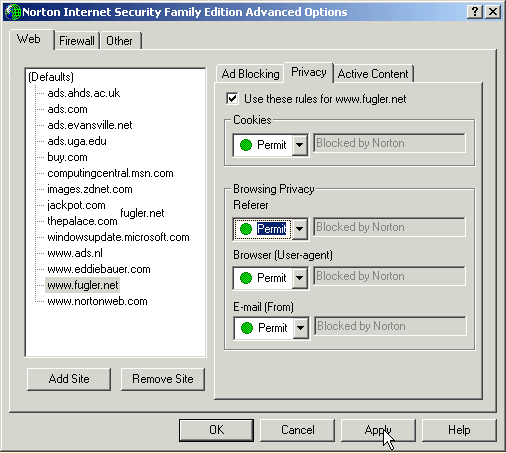
12. Click Apply, and then click OK.
13. Click OK to close the Options window.
NB! Det er mulig at du må legge inn både "www.fugler.net" og "fugler.net".
Lukk dette vinduet.